How to Set Up an Ergonomic Work-From-Home Desk (2026)
Most desk pain isn’t the desk’s fault — it’s a chair, monitor, or keyboard sitting a few inches out of place. Here’s how to fix all three in about 15 minutes.

How We Researched
Steps drawn from the Mayo Clinic’s office ergonomics guide and Humanscale’s workstation setup guide, cross-checked against our own desk-gear reviews. No manufacturer paid for placement.
* As an Amazon Associate I earn from qualifying purchases. Disclosure
What You’ll Learn
- Setting your chair height and knee angle first
- Positioning your monitor at the right height and distance
- Placing your keyboard and mouse to protect your wrists
- Using a monitor arm and task light to fine-tune position
- Building movement into a seated workday
- Picking peripherals that hold up over an 8-hour day
4 products referenced in this guide
How do you set up an ergonomic work-from-home desk without buying an entirely new office? Start with the chair, then the monitor, then everything else — in that order. Fixing the sequence backward (buying gear before adjusting what you already have) is the most common reason a “desk upgrade” doesn’t actually reduce pain.
Set Your Chair Height First
Adjust your chair before touching anything else on the desk. Per the Mayo Clinic, your feet should rest flat on the floor (or a footrest) with your thighs roughly parallel to the ground. If your desk is a fixed height and raising the chair lifts your feet off the floor, add a footrest rather than lowering the chair below a comfortable knee angle. Use the seat’s lumbar support, or a small cushion in the small of your back, so your lower spine keeps its natural curve instead of rounding forward as the day goes on.
Position Your Monitor at Eye Level
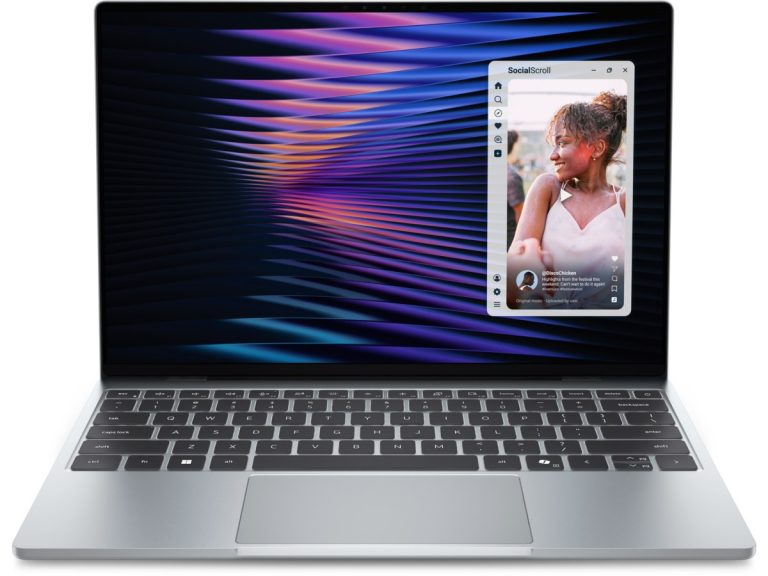
Once your chair is set, look straight ahead with relaxed shoulders — the top of your monitor should sit at or just below your eye line, about an arm’s length away: Humanscale suggests 20 to 30 inches, and the Mayo Clinic says no closer than 20 inches. Humanscale’s workstation guide notes that our natural line of sight falls about 15 degrees below horizontal, which is why the top of the screen belongs at or slightly below eye level, keeping your neck neutral instead of tilted down or craned up; it also suggests tilting the screen back 10 to 20 degrees. If your monitor sits on a fixed stand that’s too low (a common problem with laptops and older monitors), stack it on books as a temporary fix or move to a monitor arm — see Step 4 below.
Adjust Your Keyboard and Mouse Placement
Center your keyboard and mouse directly in front of your body, not off to one side, so you’re not twisting your torso to reach either one. Your elbows should stay close to your sides at roughly 90–110 degrees, with wrists straight rather than bent up, down, or to either side while typing. If your desk is too high for this angle, an adjustable keyboard tray solves it more reliably than trying to compensate with wrist pads alone.
Add a Monitor Arm or Task Light to Fine-Tune Position
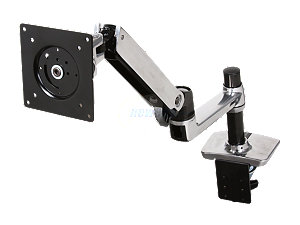
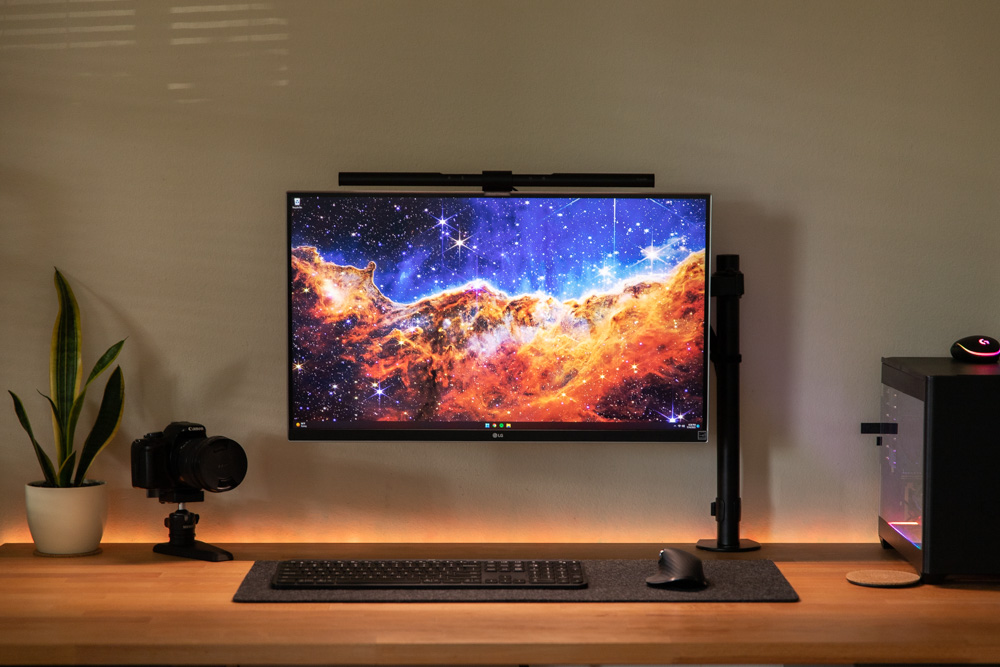
A monitor arm turns “eye level” from a one-time guess into something you can actually dial in and readjust as your chair, desk, or seating position changes through the day. The Ergotron LX Monitor ArmErgotron LX Monitor Arm holds its position through full-range tilt, pan, and height adjustment, which matters most for anyone who switches between sitting and standing. Once the monitor is positioned, a glare-free task light like the BenQ ScreenBar PlusBenQ ScreenBar Plus clips to the top of the display and lights the desk surface without casting any reflection onto the screen — useful for anyone whose desk sits away from a window.
Build Movement Into a Seated Workday
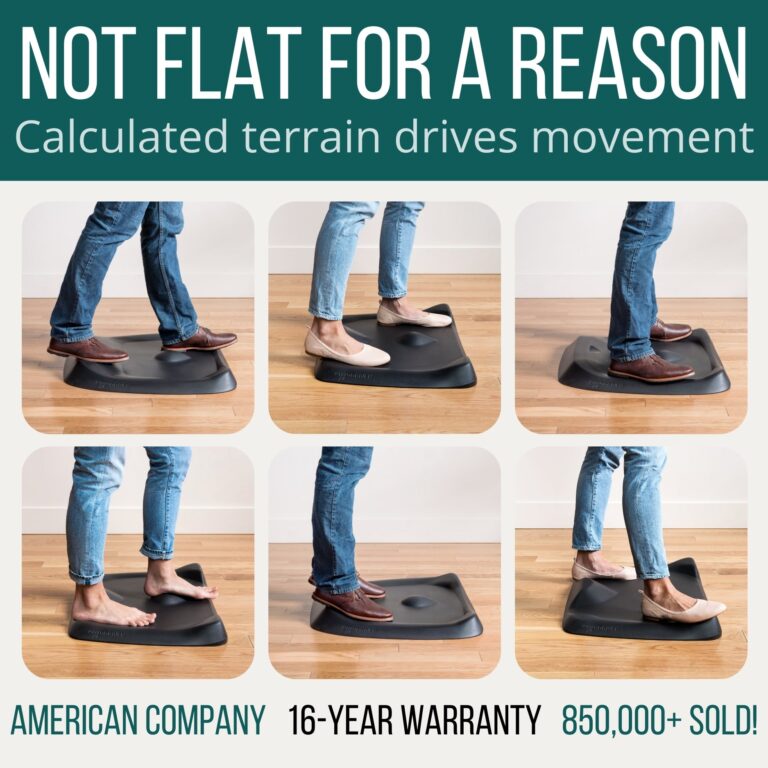
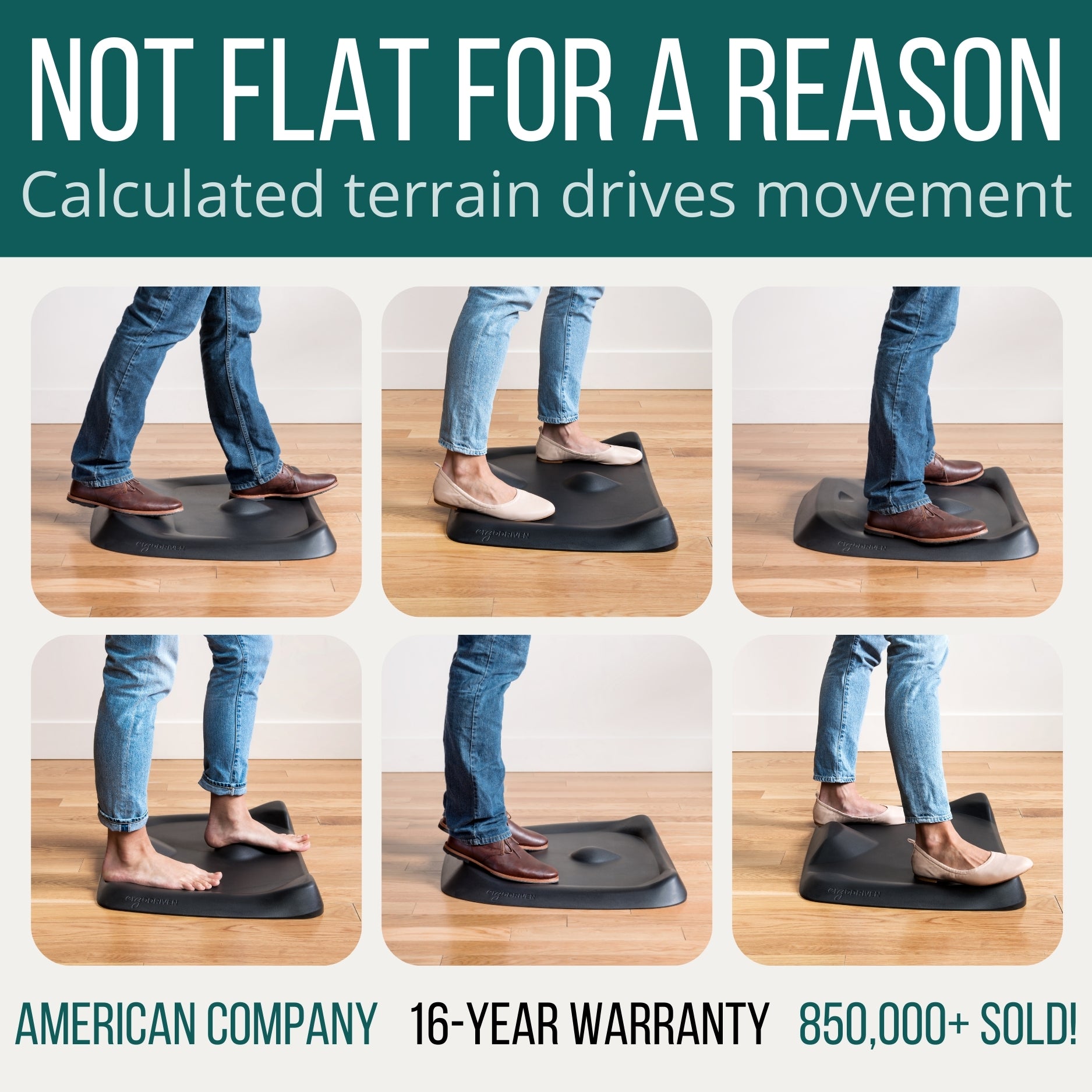
Even a perfectly adjusted desk causes fatigue if you sit in it motionless for eight hours. The Mayo Clinic recommends getting up to walk around as often as you can and, if possible, doing some work standing up. In one small study published in the CDC’s journal Preventing Chronic Disease (the 2011 Take-a-Stand Project), 24 office workers given sit-stand devices sat 66 fewer minutes a day and reported 54% less upper back and neck pain over four weeks, though the gains largely disappeared within two weeks of removing the devices. If you use a height-adjustable desk, a terrain-style anti-fatigue mat like the Topo by ErgodrivenTopo by Ergodriven encourages small position shifts while standing rather than locking your feet in one flat spot.
Choose Ergonomic Peripherals for All-Day Comfort
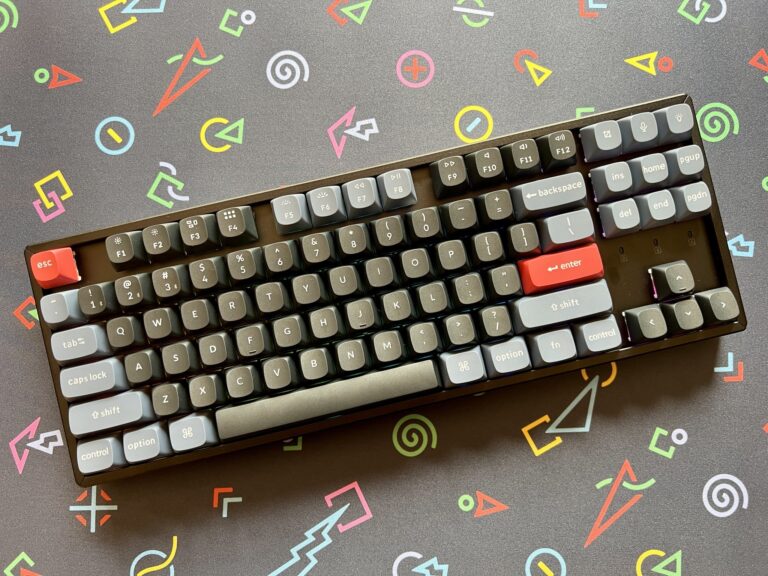
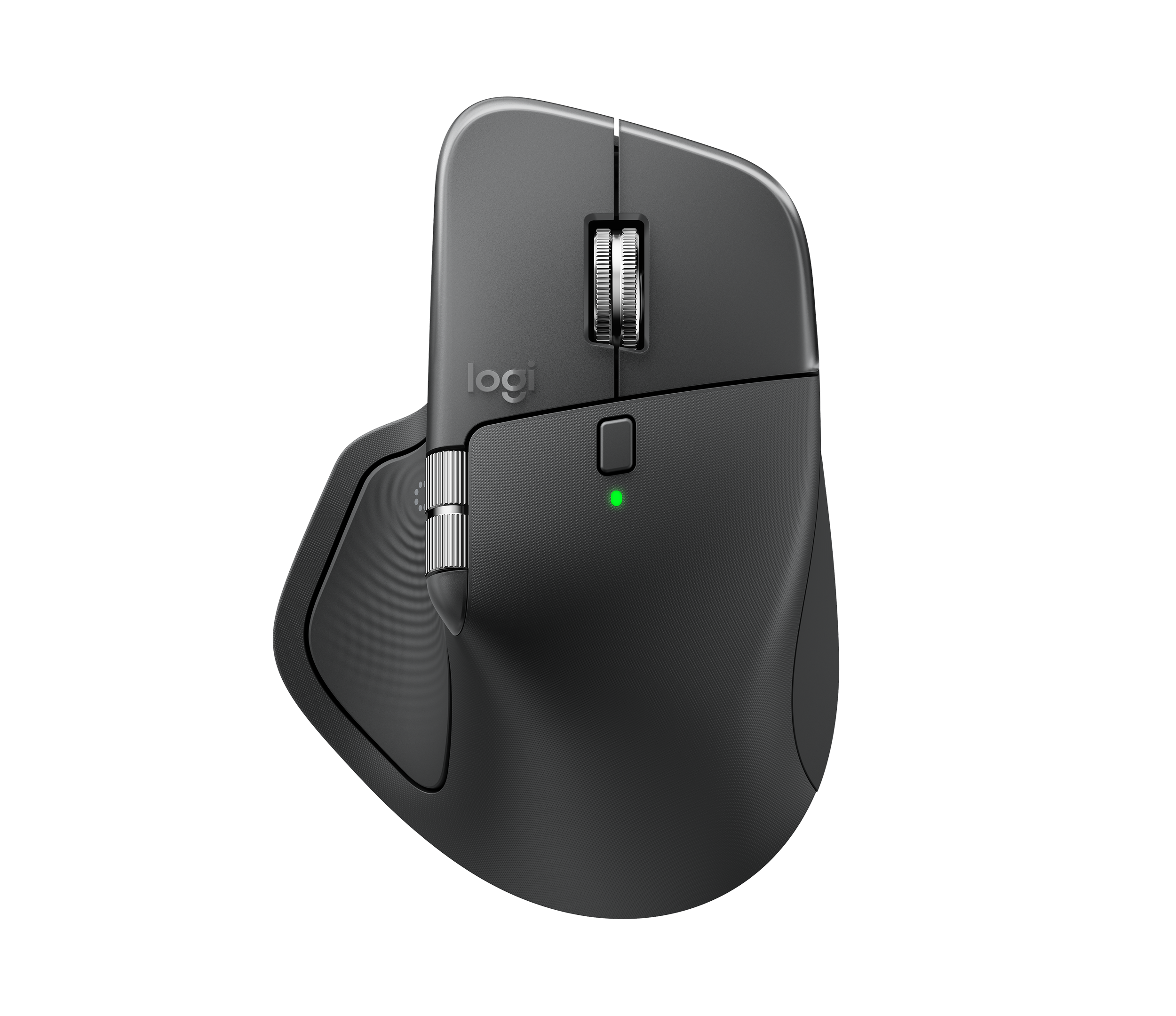
The last piece is the mouse itself, since it’s the one input device your hand touches almost continuously. A palm-shaped ergonomic mouse like the Logitech MX Master 4Logitech MX Master 4 distributes hand weight across the palm rather than loading it onto the wrist, which matters over a multi-hour workday far more than it seems to on a five-minute test at a store.
The Right Gear Makes It Easier
None of this requires replacing your whole desk — these three pieces cover the gaps a chair and monitor adjustment alone can’t fix.
Ergotron LX Monitor ArmErgotron LX Monitor Arm — the most direct fix for a monitor that’s fixed too low or too far away, with tool-free height, tilt, and pan adjustment.
Topo by ErgodrivenTopo by Ergodriven — worth adding if you already own or are considering a height-adjustable standing desk.
Logitech MX Master 4Logitech MX Master 4 — the peripheral upgrade that pays off the most for anyone mousing six or more hours a day.
Still comparing desk upgrades? See our Best Desk Ergonomics Upgrades 2026 guide →See our Best Desk Ergonomics Upgrades 2026 guide →