How to Set Up a Robot Vacuum Schedule That Actually Works
A working schedule takes minutes to set up but makes the difference between a robot vacuum you forget about and one that never quite covers the whole house.

How We Researched
Steps drawn from eufy’s official app scheduling guide and Narwal Robotics’ cleaning-frequency guidance, cross-checked against the app details in our own robot vacuum reviews. No manufacturer paid for placement.
* As an Amazon Associate I earn from qualifying purchases. Disclosure
What You’ll Learn
- Why the time zone setting matters before you schedule
- How often to actually run a robot vacuum
- Setting the time-based schedule in the app
- Room-specific scheduling for larger homes
- Matching suction and mop settings to each schedule
- Adding voice-assistant routines as a backup
3 robot vacuums referenced in this guide
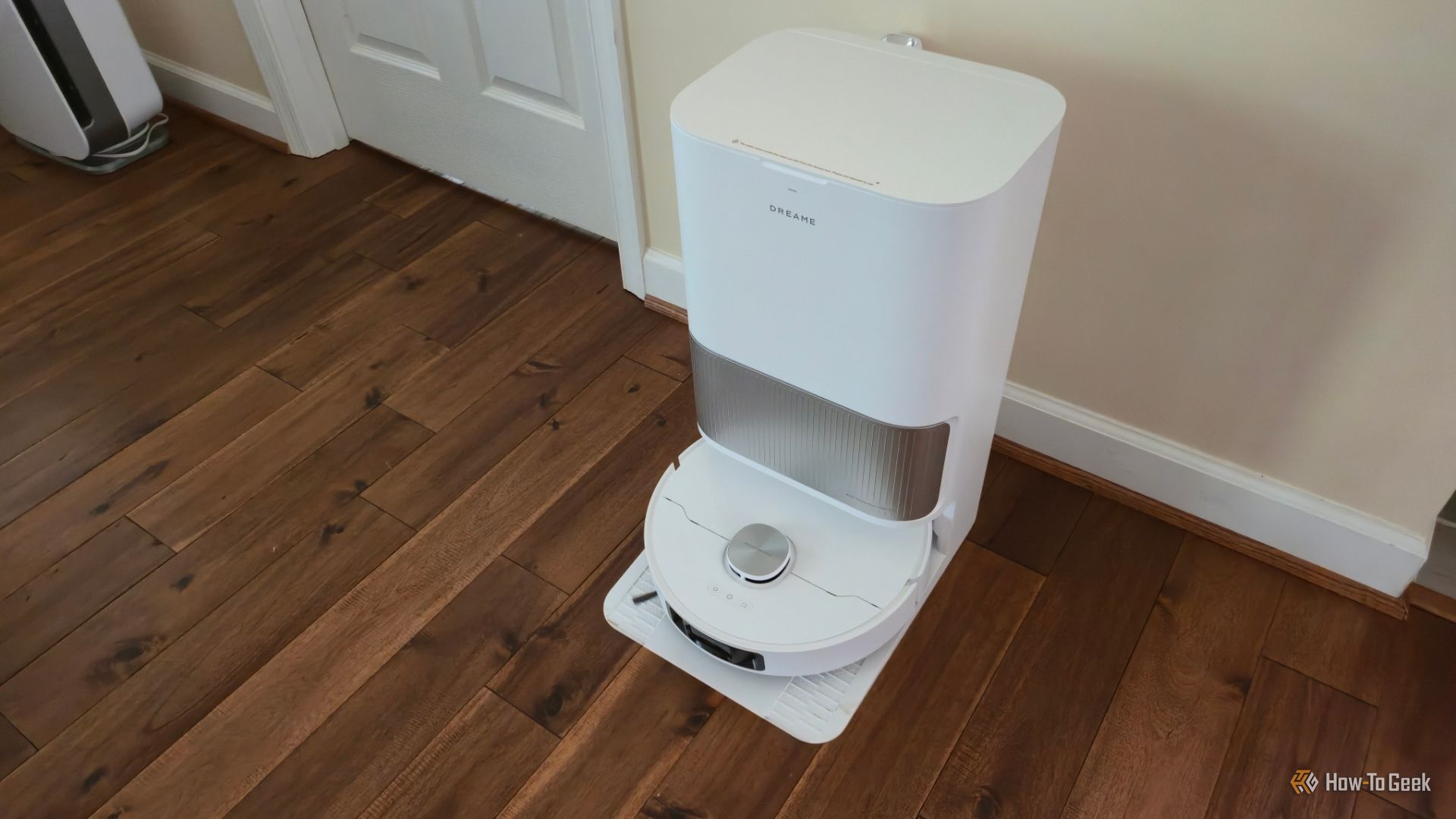
Wondering how to set up your robot vacuum schedule so it actually keeps your floors clean without you thinking about it? The setup itself only takes a few minutes, but getting the timing and settings right is what separates a robot vacuum you forget about from one that never quite covers the whole house.
Step 1: Check Your Wi-Fi Connection and Time Zone
Before touching the schedule menu, confirm your vacuum is connected to Wi-Fi and fully charged. Then check the time zone in two places: inside the app’s settings menu, and on your phone itself. eufy’s support page says to select the right time zone in both the eufy Clean app and your phone before you create a schedule, so runs start when you expect.
Step 2: Choose a Cleaning Frequency, Not Just a Time
Narwal Robotics’ cleaning guidance suggests daily runs for high-traffic areas such as living rooms, kitchens and hallways, every other day for bedrooms and frequently used bathrooms, and weekly for guest rooms, home offices and other little-used spaces. It adds that homes with pets or children may benefit from daily cleaning, while weekly may be enough for quieter households.
Step 3: Set the Time-Based Schedule in the App
Open your vacuum’s app and navigate to the schedule or timer section. Pick a start time, the days of the week you want it to run, and a suction or cleaning mode. Narwal suggests quiet times, like mid-morning or late evening, when your home is less active, or while you’re out at work, so the vacuum runs without interruptions and you come back to a clean home. Kitchens: if food debris is a daily issue, add a short kitchen-only run after your last meal of the day.
Step 4: Create Room-Specific Schedules for Larger Homes
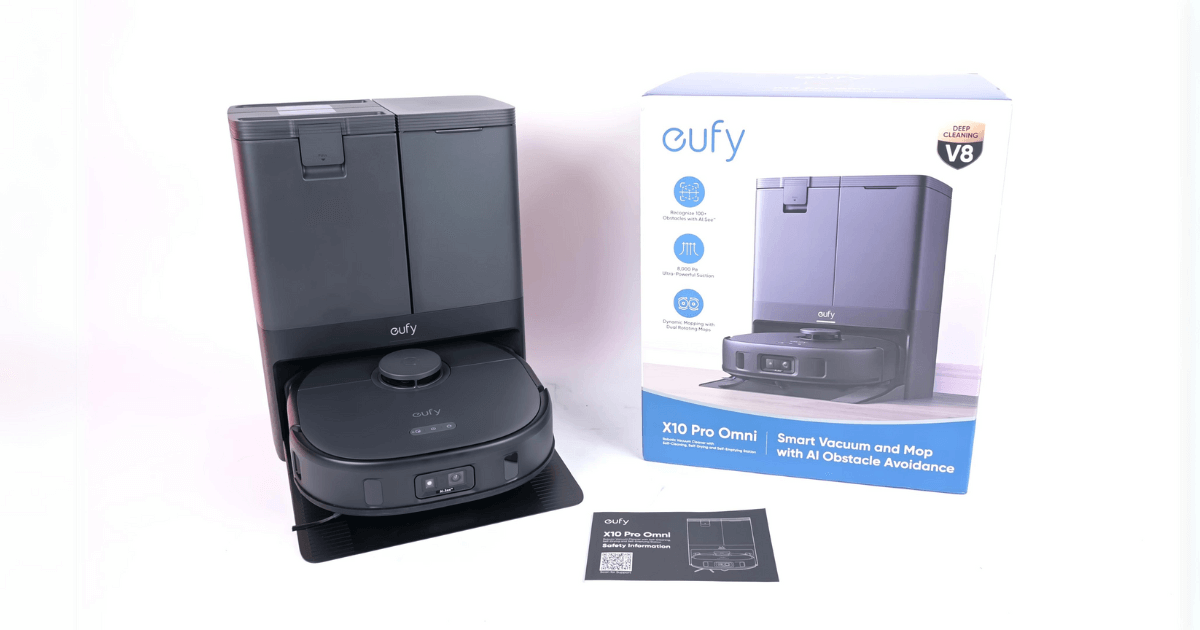
A single whole-home run every night isn’t always the most efficient option in bigger houses. Rotating through rooms on different days — kitchen and entry on weekdays, bedrooms and living areas on weekends — covers more ground overall and keeps any one cleaning session shorter. Vacuums with LiDAR mapping and named room zones, like the eufy X10 Pro Omnieufy X10 Pro Omni, make this kind of room-by-room scheduling straightforward from the app.
Step 5: Adjust Suction and Mop Settings Per Schedule
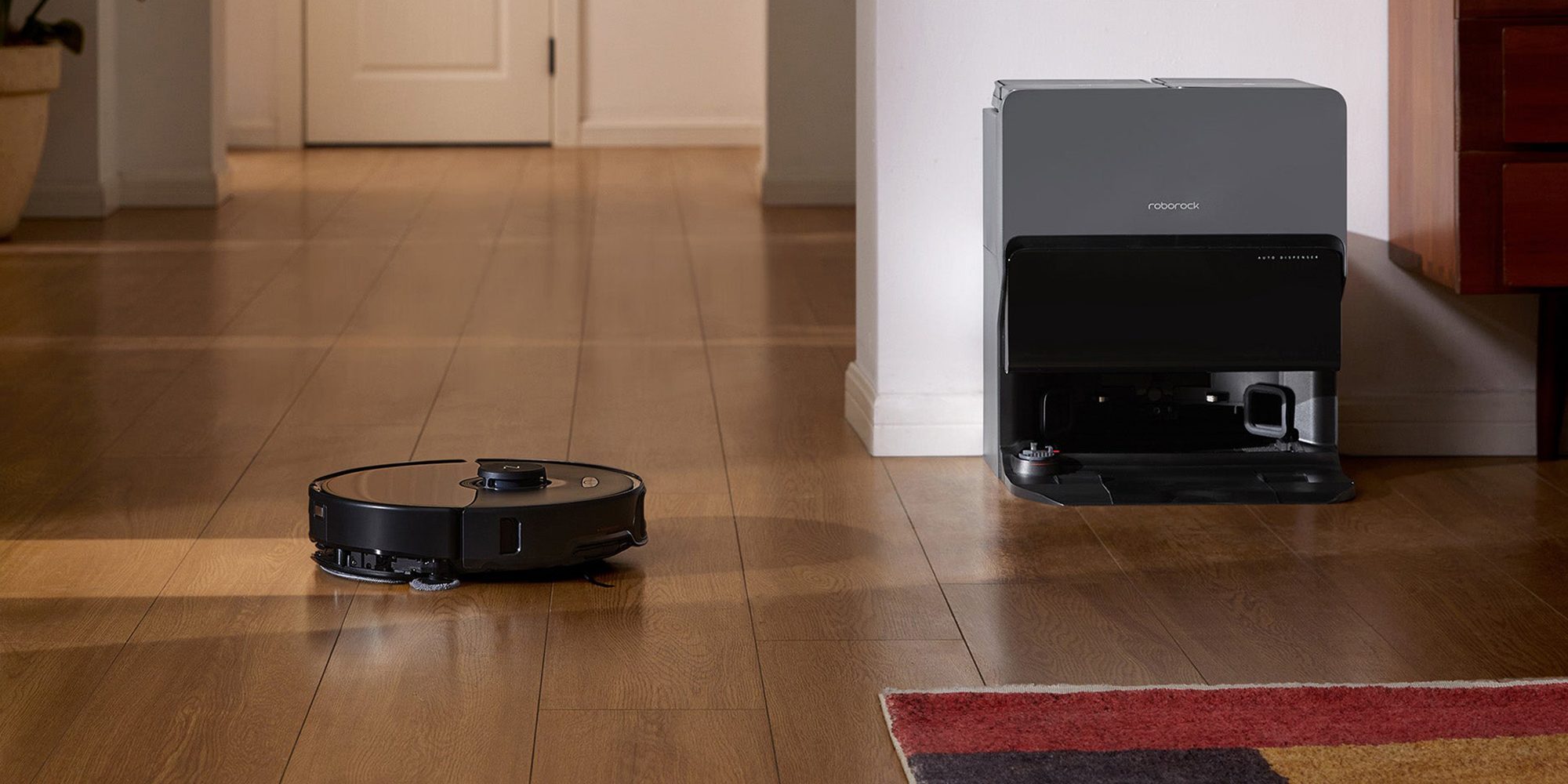
Most apps let you set suction power and, on combo units, mop water flow independently for each schedule — not just once globally. A quick daily pass on carpet can run at a lower, quieter suction setting, while a deeper weekend clean can use max power. On mop-equipped models like the Roborock S8 Max UltraRoborock S8 Max Ultra, matching mop humidity to your flooring type in each schedule avoids over-wetting hardwood on repeat passes.
Step 6: Add Voice or Smart Home Routines (Optional)
If your vacuum supports a voice assistant, you can layer routine-based triggers on top of the time-based schedule — for example, starting a cleaning run when the front door locks after everyone leaves for the day. This isn’t a replacement for the app schedule, but it’s a useful backup for days that don’t follow the usual routine.
The Right Gear Makes It Easier
Any of these steps work with most modern robot vacuums, but a few models make scheduling noticeably less fiddly thanks to better app design and mapping.
eufy X10 Pro Omnieufy X10 Pro Omni — LiDAR room mapping makes room-specific scheduling simple to set up and edit later.
Roborock S8 Max UltraRoborock S8 Max Ultra — per-schedule mop and suction control for households with mixed flooring.
Dreame L40s UltraDreame L40s Ultra — strong enough suction on a single scheduled pass to handle heavy pet hair without a second run.
Still deciding which robot vacuum to buy in the first place? See our robot vacuum buying guide →See our robot vacuum buying guide →