How to Speed Up a Slow Laptop or PC Without Buying New
A sluggish computer often has causes you can fix for free, from apps that launch at startup to a drive that’s nearly full. Work through these six steps in order, and by the end you’ll know whether a memory or storage upgrade is worth paying for.

How We Researched
Steps drawn from Microsoft’s own performance tips for Windows, cross-checked against Windows 11 speed-up guides from Windows Central and Computerworld, with upgrade advice from TechSpot. No manufacturer paid for placement.
* As an Amazon Associate I earn from qualifying purchases. Disclosure
What You’ll Learn
- Why a full restart beats Sleep
- Which startup and background apps to switch off
- How to clear space on your main drive safely
- Where updates, drivers and a malware scan fit in
- Which visual and power settings trade looks or battery for speed
- How to tell whether more RAM or an SSD would help
2 computers referenced in this guide
How do you speed up a slow laptop or PC without replacing it? Start with the free fixes. Computers tend to slow down over time as apps, files and drivers pile up, and much of that build-up can be undone. The steps below are for Windows 11 and run from quickest to most involved. On a Mac, Apple’s own checklist covers similar ground: make room on the startup disk (Apple menu > System Settings > General > Storage) and check how much memory your apps use in Activity Monitor.
Step 1: Restart Properly and Close What You Aren’t Using
Shut down and restart before you change anything else. A full restart clears out memory and ends background processes that have built up, which helps most on a machine that has been running for days. Sleep and Hibernate don’t reset anything, so closing the lid doesn’t count.
If it’s still slow after the restart, see what’s using the resources:
- Press Ctrl + Shift + Esc to open Task Manager.
- On the Processes page, look for apps you aren’t using and anything with high memory or CPU use.
- Right-click an app you don’t need and select End task.
Browser tabs count too. A long row of open tabs can slow things down, so close the ones you’re done with.
Step 2: Stop Apps From Launching at Startup
Apps that start with Windows can add to boot time and keep using resources in the background while you do other things. Trim the list:
- In Task Manager, select Startup apps on the left.
- Check each entry’s Startup impact, then right-click anything you don’t need at sign-in and select Disable.
- Restart, and the disabled apps stay closed until you open them.
Disabling an entry doesn’t remove the app. It only stops the automatic launch, and you can turn it back on from the same list. If a name means nothing to you, right-click it and choose Search online before you decide.
Some apps also run background processes when you aren’t using them. For the ones you rarely open:
- Go to Settings → Apps → Installed apps.
- Select … next to the app, then Advanced options.
- Under Background app permissions, choose Never, or Power optimized to let Windows decide.
Step 3: Free Up Space on Your Main Drive
A system drive that’s running out of room can make apps slower to open and files slower to handle. Windows Central says the slowdown typically shows once a drive is around 70 percent full, so leave yourself plenty of headroom. Windows’ built-in cleaner does most of the work:
- Go to Settings → System → Storage.
- Turn on Storage Sense, which from then on clears temporary files and old Recycle Bin items on its own. It can also delete files that have sat untouched in Downloads for a month: select the arrow next to the toggle to check or change that setting.
- Select Temporary files, tick what you want gone, and select Remove files.
Read the list before you tick: the Downloads option deletes everything in your Downloads folder.
Then uninstall programs you no longer use, from Settings → Apps → Installed apps (select … → Uninstall). That frees space and can cut background activity, and it’s where you clear out trial software and other extras the manufacturer may have installed.
Step 4: Install Updates, Then Scan for Malware
Windows updates often include fixes and performance improvements, and an outdated driver can drag a PC down on its own.
- Go to Settings → Windows Update → Check for updates and install what’s offered.
- Then open Advanced options → Optional updates, where driver updates appear, and install any listed.
Malware and adware can eat up CPU and disk resources too. Windows’ built-in scanner is enough for a first check:
- Go to Settings → Privacy & security → Windows Security → Virus & threat protection.
- Select Quick scan.
If you suspect an infection, run a full scan rather than a quick one, and consider a second opinion from a free scanner such as Malwarebytes.
Step 5: Trade Visual Effects and Battery Saving for Speed
Animations, shadows and other visual effects use system resources, and older machines feel that most. To switch them off:
- Type performance in the Start search box and open Adjust the appearance and performance of Windows.
- On the Visual Effects tab, select Adjust for best performance, then OK.
Then check the power mode under Settings → System → Power & battery. The Power mode menu offers Best power efficiency, Balanced and Best performance. Best performance is the fastest, but Microsoft warns that on a laptop it drains the battery faster and may make the machine run warmer. On a laptop running a recent Windows 11 release, Computerworld notes, the power mode is listed under a Plugged in or On battery setting, depending on whether the laptop is plugged in, so a sensible split is Best performance when plugged in and Balanced on battery. For demanding work, plug the laptop in.
Step 6: Check Whether More Memory or an SSD Would Help
If the PC is still slow after all that, the hardware may be the limit. Microsoft notes that older PCs with outdated hardware may not improve much from these steps.
Start with memory. Open the apps you normally use, then go to Task Manager → Performance → Memory. Windows Central’s rule of thumb: if the memory in use stays around 80 percent, it’s time to upgrade. For capacity, TechSpot’s 2022 RAM guide calls anything under 8GB not good enough, 8GB sufficient for most essential tasks (with more helping multitasking), and 16GB comfortable for general computing. Running short looks like hitching: Reviewed found an 8GB IdeaPad Slim 3i could quickly run out of memory with even modest multitasking in Chrome, with browser tabs needing to reload often.
Next, check whether you can add any. The same Memory page shows how many slots are in use. Some laptops have memory soldered to the board: Lenovo’s spec sheet for that IdeaPad Slim 3i lists every configuration’s memory as soldered and not upgradable. Windows Central points to Crucial’s online tool, which checks thousands of laptop models for compatible memory and SSD upgrades, and the maker’s own spec page has the same details. If you add a module next to an existing one, match its speed and timing, so the laptop can run the two in dual-channel mode.
Then storage. Most Windows 11 machines already have an SSD, but if yours still has a mechanical hard drive, swapping it for an SSD is well worth doing. You’ll need to clone the old drive to the new one, or reinstall Windows on it.
Before you spend anything, there is one free fix left. Windows Central suggests resetting Windows to factory settings while keeping your files: go to Settings → System → Recovery, select Reset PC next to Reset this PC, then choose Keep my files. Back up anything important first, and expect to reinstall your apps afterward.
If neither upgrade is possible, a new computer may be the better long-term fix, especially for a machine that’s three or four years old.
If You Do Replace It
If the answer is a new machine, buy one with the memory you’ll need, or one you can upgrade later.
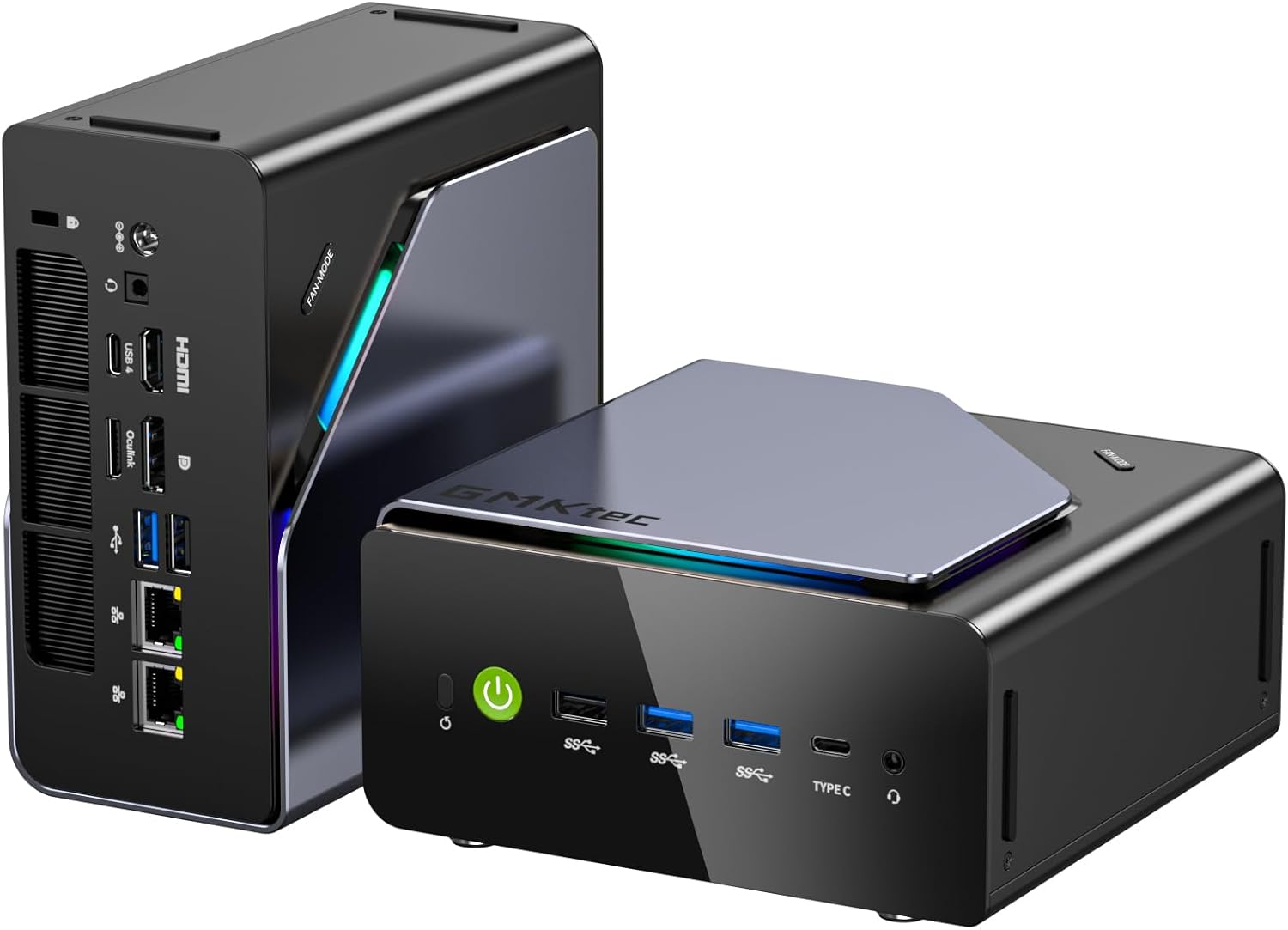
GMKtec K12 Mini PCGMKtec K12 Mini PC — a compact desktop that stays upgradeable, with dual-channel DDR5-5600 memory up to 128GB and room for up to 24TB of storage across three M.2 slots, according to its launch specs.
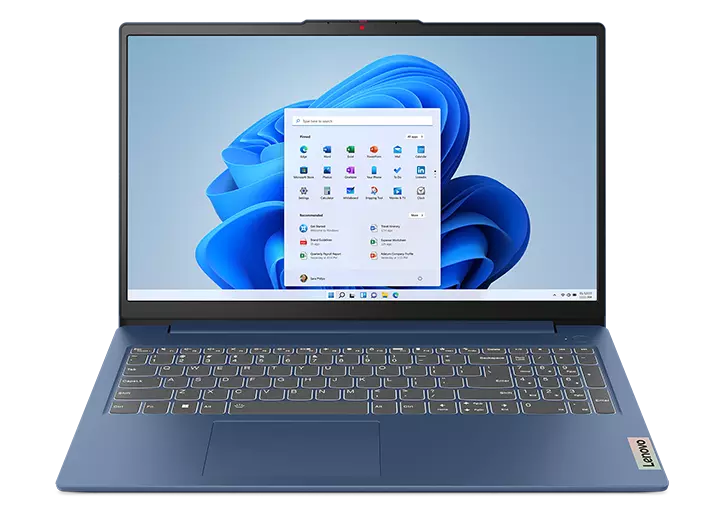
Lenovo IdeaPad Slim 3iLenovo IdeaPad Slim 3i — a 15.6-inch Windows laptop for desk work. Its memory is soldered, so choose the 16GB configuration rather than counting on an upgrade later.
Shopping for a replacement anyway? See our Best Back-to-School Tech Essentials 2026 guide →See our Best Back-to-School Tech Essentials 2026 guide →
Sources
- Microsoft – Tips to improve PC performance in Windows
- Windows Central – Best tips to increase your computer performance on Windows 11
- Computerworld – How to speed up Windows 11
- TechSpot – How to Upgrade your Laptop’s RAM
- Windows Central – How to find out if you can upgrade your laptop
- Reviewed – Lenovo IdeaPad Slim 3i 15 (2023) Review
- Lenovo – IdeaPad Slim 3 15IRU8 Specifications (PDF)
- Funky Kit – GMKtec Launches NucBox K12 Mini PC With AMD Ryzen 7 H255
- Apple – If your Mac runs slowly