How to Set Up a Dual Monitor Workspace for Productivity
A second screen only pays off if it is wired, arranged, and positioned correctly. Six steps take you from an empty desk to two screens that work together instead of fighting each other.

How We Researched
Software steps come from Microsoft Support’s multiple-monitor guide, Apple Support’s display limits by MacBook Air model, and Apple Support’s display guide. Viewing distance and height come from OSHA’s computer workstation guidance, and the two-screen layouts from Ergo Living Space, cross-checked against our own monitor and monitor-arm reviews. No manufacturer paid for placement.
* As an Amazon Associate I earn from qualifying purchases. Disclosure
What You’ll Learn
- How to confirm your computer can drive two displays
- How to connect both monitors and check each one is detected
- How to extend the desktop instead of duplicating it
- How to arrange the screens in software to match your desk
- Where to place each screen for comfortable viewing
- How to match scaling, taskbar, and window behavior
3 products referenced in this guide

How do you set up a dual monitor workspace that actually speeds up your work? Work in this order: connections, then the software layout, then the physical position of each screen, so no later step undoes an earlier one.
Check That Your Computer Can Drive Two Displays
Count the video outputs before you buy a second screen. A desktop with a graphics card usually shows several HDMI and DisplayPort jacks on the back; a laptop often has one HDMI port plus a USB-C or Thunderbolt port that carries video.
Macs have a hard limit worth checking before anything else. Apple Support says MacBook Air models with an M1 or M2 chip drive one external display, the M3 MacBook Air drives two only with its lid closed, and the M4 MacBook Air drives two with the lid open. On a base M1 or M2 Air, a second external screen needs a DisplayLink dock, which adds the extra display through its own driver.
Then match the cable to the port and the picture you want. HDMI 2.0 carries 4K at 60 Hz, while DisplayPort 1.4 and HDMI 2.1 handle 4K at 120 Hz and above, so a high-refresh monitor needs one of those. A USB-C port only carries video if it supports DisplayPort Alt Mode or Thunderbolt, usually marked with a DisplayPort or lightning-bolt icon beside the port. Cabling is simpler still if your monitor supports daisy-chaining: the BenQ MA270SBenQ MA270S has two Thunderbolt 4 ports, one of them meant for chaining, which can cut the number of cables back to the computer.
A hub or dock is the usual fix for a laptop short on ports, but not every hub sends two pictures. Our Anker 555 USB-C Hub reviewAnker 555 USB-C Hub review notes it outputs only a single external display, so a two-monitor desk needs a dock or hub with a second video output instead.
Connect Both Monitors and Confirm Each One Is Detected
Plug each monitor into its own video output, power both on, and give the computer a moment. Windows usually detects a newly connected monitor on its own, and Microsoft’s multiple-monitor guide points to the Detect button under Multiple displays if one doesn’t appear. To confirm both are seen on Windows:
- Open Settings → System → Display
- Expand Multiple displays
- Click Identify: a number appears on each screen
On a Mac, open System Settings → Displays and check that both displays are listed in the sidebar.
Extend Your Desktop Instead of Duplicating It
If both screens show the same picture, Windows is in Duplicate mode, which adds no working space. Switch to Extend so each monitor holds different windows. The fastest route on Windows is the Windows key + P menu, which lists PC screen only, Duplicate, Extend, and Second Screen only, as listed in Microsoft’s multiple-monitor guide. Or, through Settings:
- Open Settings → System → Display
- Open the Duplicate these displays drop-down
- Choose Extend these displays, then click Keep these changes
On a Mac, per Apple Support:
- Open System Settings and click Displays in the sidebar
- Click the name of the display you want to change
- Open the Use as pop-up menu and choose the extended-desktop option. Mirroring is offered in the same menu.
Arrange the Screens in Software to Match Your Desk
The operating system does not know which monitor sits on your left, so drag the display icons until the on-screen layout matches the physical one. Get this wrong and the mouse pointer exits the wrong edge of one screen and appears on the opposite side of the other. On Windows:
- In Settings → System → Display, click Identify to see which number is which screen
- Click and drag the numbered rectangles to mirror how the monitors sit on the desk
- Click Apply
- Select the screen you work on most and tick Make this my main display
On a Mac, open System Settings → Displays and click Arrange… to drag the display icons into position the same way.
Position the Screens at Eye Level and Arm’s Length
OSHA’s workstation guidance asks for a monitor directly in front of you, at least 20 inches away, with the preferred viewing distance running 20 to 40 inches, and the top line of the screen at or below eye level. OSHA gives no rule specific to two screens, so for the layout, Ergo Living Space splits it by how you actually work:
- One screen does most of the work: center the main monitor with your keyboard, place the second beside it with the bezels touching, and angle it inward about 30 degrees.
- Both screens get equal use: sit at the seam between them and angle each inward 15 to 30 degrees in a shallow V.
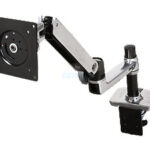
The same source asks for both tops to sit within half an inch of each other. A monitor arm makes that adjustment quick: the Ergotron LXErgotron LX lifts up to 13 inches and holds monitors up to 34 inches and 25 pounds. It is a single-monitor arm, so a dual desk takes two.
Match Scaling, Taskbar, and Window Behavior
Two monitors with different sizes or resolutions can make text look mismatched as you drag a window across. On Windows, these three settings are worth checking:
- Resolution: Settings → System → Display, select the second monitor, scroll to Scale & layout, then open the Display resolution drop-down
- Taskbar: Settings → Personalization → Taskbar → Taskbar behaviors, then tick Show my Taskbar on all displays
- Window memory: Settings → System → Display → Multiple displays, then enable Remember window locations based on monitor connection
The last one puts windows back where they were after you unplug a laptop and dock it again.
The Right Gear Makes It Easier
Three products from our office reviews solve specific steps above.
Acer Vero B247Y GAcer Vero B247Y G — a 24-inch 1080p IPS monitor with a stand that adjusts for height, tilt, swivel, and pivot, plus a 100mm VESA mount, so buying two gives you an easily matched pair.
Ergotron LX Single Monitor ArmErgotron LX Single Monitor Arm — frees up desk space and lets you set each screen’s height and angle independently.
BenQ MA270SBenQ MA270S — a 27-inch 5K display with Thunderbolt 4 ports built for daisy-chaining, aimed at Mac users who want fewer cables.
Still choosing screens? See our Best Monitors for Home Office 2026 guide →See our Best Monitors for Home Office 2026 guide →